Showing posts with label Google. Show all posts

Monday, June 1, 2015

Classroom or Edmodo

In the past I pushed to get teachers to adopt the use of Edmodo.  However, with the migration to Google accounts I chose not to actively recommend Edmodo this year.  Not only can Google Drive files be shared, they can be edited collaboratively.  In addition, at the end of school year 2014 Google was testing a beta version of a management site dubbed Google Classroom.  (Rather than calling it a classroom management system, or even a content management system, let's just call it a Google Drive management system.)

At the start of the year I figured teachers might feel a bit overwhelmed if I tried to get them to adopt booth Google Mail, Google Drive, Google Docs AND Google Classroom.  As a result, I mentioned Google Classroom to very few teachers.

In spite of all of the above  Emily Martin (AHS) made use of Edmodo this year, and Matt Gillis (CHS/CES) used Google Classroom.  So, I thought I'd ask the two of them to briefly describe their experiences with these sites and give teachers a chance to consider them for next year.

Here are some remarks directly from Emily ....
Generally, I will use Edmodo with my upper-level Spanish classes. I give them a situation, and they have to provide a comment. For example, I provided a question in Spanish from a Spanish advice column. Students had to use a particular verb tense that we were reviewing to provide an answer for that question. Then, we discussed phrases such as “I agree,” “That is a good idea,” “I disagree,” etc., and how to explain why. Then, they had to comment on another students´ comment, similar to a blog. I have also used Edmodo as a tool on which students can save Power Point presentations if they do not have a flash drive, or for peer-editing: Students may share sentences that they have written, and then comment upon grammatical errors in other students´ sentences. Then, I comment about whether or not it is correct.
Immediately my students enjoyed the set-up of Edmodo. It is easy to log into, and the fact that it looks like Facebook makes it attractive to them. They seemed disappointed that it does not have all of the Facebook features like “friending” their classmates, but this was the main complaint. It also seems to motivate them to write in Spanish. I have noticed that they may not write in perfect Spanish on Edmodo, but they try with what they know, and they use Spanish more frequently than they do during a normal lesson. In fact, sometimes I do not even have to remind them to use Spanish – it is almost as if they immediately know that they need to use it on Edmodo, and they love to send funny and sarcastic Spanish messages to one another! I love to read their comments.
Overall, I give Edmodo a very good review, and I would recommend it to any teacher who would like to use it as an interactive slightly conversational tool, especially if you struggle with getting all of your students to participate during oral discussions in the classroom.

and here is what Matt had to say about google classroom:
 I've used Google Classroom with my 7th Grade Chorus class, who did a research project on a favorite pop star. It was very easy to set up an assignment for them and set a due date. Since the 7th graders have Chromebooks and Google accounts, it took very little time to get them set up and working. Once they started working, I could monitor their progress from Google account, and I could give each student personalized feedback. Now that they have turned in their projects, I can give them a grade and return it to them. I distribute the assignment and rubric, they do their research, type their notes, create their slide presentation, and get their grade all without using a single sheet of paper.
I'm in a situation where my classroom gets used by others, and at certain times of the year I have to  hold class in different places throughout the school. The flexibility of being able to work on their projects anywhere without the hassle of walking around to each computer with a flash drive was an absolute God-send. There are other apps that can be integrated with Google Classroom to create a rubric and tally a score on the assignment as well. I haven't yet explored those options, because they seem pretty difficult to work with. I will just stick with Classroom for now.
Although Google Classroom just recently came out of Beta testing, I really like the features it has so far. I look forward to what new features will be added to classroom as time goes on.

The big advantage of google classroom is that it integrates well with Google drive --its'strong point is managing the flow of files. It also allows students to use a single log in  Edmodo, on the other hand, is aimed more at classroom management.  The difference can be seen by looking at some of classroom's limitations. According to Alice Keeler, Classroom will not:
Google Classroom does not handle course enrollments like you would find in an LMS or CMS.  Google Classroom does not have a gradebook.  Google Classroom does not track student participation. While students can comment in Google Classroom, there are not discussion boards.Google Classroom does not integrate quizzing features....Google Classroom does not allow teachers to create content within the system. Instead, teachers link to content they build in other places such as Google Docs.  Google Classroom assignments can not be organized into modules or units.
This is not to say that Alice Keeler doesn't think highly of Classroom, after all, she states,  "Since it is from Google, it integrates with Google Drive in amazing ways." and offers a list of 50 things you can do with classroom. In essence, Classroom allows you to set up an environment to both distribute and collect assignments. She offers an entire collection of posts on the use of Google Classroom.

You might consider adopting one of these two in the fall, however,  before making a decision, I'd recommend that you wait until August or September to do so because Google Classroom is evolving as I write and some of the things listed as limitations above, may have be available this fall.


Tuesday, May 19, 2015

Remarks from a former Google CEO

Some of you are already aware that I took some personal days this past week in order to attend my youngest daughter’s graduation ceremony from Va Tech.  The commencement speaker was Eric Schmidt,  who, for over ten years was the  CEO of Google.  YouTube has made it possible for me to replay those remarks and pass along an abridged version of his address as the subject of this post.  Please keep in mind that I am not copying from a formal printed document, rather I’m transcribing from a speech, therefore the punctuation and phrasing won’t be exactly as it would be had it been prepared for publication.
             "You're connecting to each other in ways that it was not possible before.  You're using those connections to strengthen invisible ties that hold humanity together.   The connections are what make us human.  They're the things that make  us stronger, ...
If you're awake you're on line, ...you're connected, ...some of you are probably texting right now....Don't take that power for granted.  What you carry with you every day can change the world.  When I was in college, I spent the summers working at Burris Hall in the computer center and the computer center consisted of one computer called an IBM 371-58 and it had a megabit of memory and a  megahertz of processing power, and I was talking to someone the other day and they said "Oh it's a room with a computer,  and I said ‘No, no,  you don't understand, the computer was as big as the room’, ...  and it probably cost around a 10 million dollars.

 Now take a break  from snap chatting and just listen to these numbers, In your phone you probably got 64 or 128 gigabytes of computation for let's say $500 plus or minus,  unsubsidized  That's  20,000 times cheaper and  100,000 times faster, so it's  two trillion times more useful than the computer i used here forty years ago.
Mr. Schmidt pointed out that the commencement address he delivered in 1999 is not on line...

 …because YouTube wasn't invented. And I didn't have a smart phone because they weren't invented, Google was one year old…Amazon was still only a bookstore. Facebook had not been founded.   You couldn't use Twitter, …and, of course, Google Maps  didn't exist, .....So, when you think about it, that's a lot of change, ....[when I was in college] all of our information was what our teachers told us. … now you can know almost everything about everything, .....[just by using]  your smartphone.
If you change the way you approach things,  then you have an opportunity to change the way your life begins.  In other words you chose to live this way So figure out a way to take advantage of these tools,  You're the Internet generation, you grew up on line.   You’re the first generation to literally grow up with this as ubiquitous.  It's interesting that I hear lots of people bemoaning this generation, specifically that you all grew up living life [in front of] computer screens always connected to something or someone.  I'm absolutely convinced that these critics are wrong.  The fact that we are now all connected is a blessing.  It's a blessing for safety. It's a blessing for education.  It's a blessing for world peace.  It's a blessing for economic growth.   It's a blessing for your business futures…

 A world's worth of information is perpetually now at your fingertips.  This opens the door to all sorts of interesting questions: How are we going to process all of this data?  … How will you use it?  How will you use it for  good?  How will we find the right balance between letting the data lead us and following our inherent creative and brilliant human intuition….
It is interesting that in the digital age, analysis and interpretation  are even more important than factual knowledge,  ...So here's the deal, …Just because we know so much doesn't mean our problems go away.  The future, doesn't just happen.  …Technology doesn't work on its own.  It's just  a tool.   You're the ones who harness its power.  You're the ones who lead it.  It's in our service and in particular in your service.   It's up to you to know your environment and to use these new tools at your disposal in the smartest and most effective ways possible... A computer is obviously capable of identifying insights…but, the truth is there's plenty we can do and we need to do for ourselves. Intuition, compassion and creativity, these are the things that make us special, ...These are the things we do much better than machines and that define us as humans....
So we're on a cusp of a new and much larger scale of innovation. ...  [Progress will be made in areas such as climate change, fighting cancer, etc…]   But, someone has to make it happen and those people are you.  Computers won't just do this.  It's not going to happen on an auto pilot and it's not going to happen because computers think it's going to happen.  You need to drive it.   You need to make it happen.  ...All  of us are counting on you.   The future that you're building is mine too, ...I need you to do some things; ...I need you to be curious...Ask a lot of questions and go out and try to find the answers.  Don't accept traditional or conventional wisdom.  …When someone says you're thinking too big, say, ‘I don't think I'm thinking big enough.’ 
I thought all of this is a good reminder that technology is a tool which we have to use if we are to connect with today’s digital generation.  Also, teaching this generation higher order thinking skills is far more important than the impartation of facts, after all, students can find all the facts in the world merely by taking their phones out of their pockets.  We need to help them develop the skills for using these facts.

Thursday, April 30, 2015

Google World Wonders


As a former Geography teacher, Google World Wonders sounded wonderful to me.  In the World Geography SOLs there are World Monuments which the students have to be able to identify--Taj Mahal, Big Ben, the Gateway Arch, etc. I knew that Google World Wonders utilized Google Earth street level imagery and I figured that this would be a terrific way to teach these monuments.  Well,  it is, but, I was disappointed to learn that the monuments which can be visited on a World Wonders virtual field trips are limited to a mere 173. This means that of the cultural monuments in the United States, for example,  the Golden Gate Bridge and Independence Hall are among the wonders included, but, the U.S. Capital building and the Gateway Arch are not. Neither is the Eiffel Tower.

With both the capital building and the Eiffel Tower, I found that if I clicked on the Maps icon in my Google Apps box, searched for these locations, and then switched to the street level view, they have some terrific views of those landmarks.  That being the case, why would a geography teacher, or any other teacher, use the World Wonders site rather than just using Google Maps?  I, for one, would certainly use both were I still in the classroom.

 What Google World Wonders has that a street level view elsewhere may not have would be "details"--that is some script giving a bit of  background information about the site. They also have "collections", put together by Google.  These collections might include historic photographs as well as current ones.  For example, you can compare Louis XIV's bedroom as it appeared in the 19th century with how it looks today. In addition you can look  through "user galleries" which is just what the name implies--pictures put together in an album, which some user has created for others to view. Quite often these galleries will include comments from the user as well as details about where the photograph came from, etc. Finally, you can create your own collections--that is, you can gather various items available at Google World Wonders into an album of your own--organize them, add comments, and then show them, or make them available to your students. However, you cannot add photos or other items from outside the project (except for YouTube videos--which you can add--so I guess you could put photos into a YouTube video and add that--once you take care of the filtering issues.)

Here is what someone else had to say about the educational use of World Wonders:
"The World Wonders Project offers an Education page dedicated to assisting educators in history and geography topics. Teacher guides are available for primary school and secondary school. These guides include activity sheets, lesson plans, and presentations. Beyond the obvious use of the free guides, the resources, pictures, historical content and 360 degree view are easy to use and are organized for quick accessibility in the classroom.... The most developed program is secondary school history and geography topics. History topics include: Hiroshima Peace Memorial, Pompei, Herculaneum and Torre Annuziata, Liverpool, Palace of Versailles, Florence, and Independence Hall. Geography topics include: Ogasawara Islands, Dorset and East Devon Coast, and Paris. Each topic includes teaching activity sheets, lesson plans, and presentations."
Etec602.wikispaces.com,. 'Etec602 - Google World Wonders Project'. N. p., 2015. Web. 6 Feb. 2015.


Again, if I were in the classroom, I'd certainly ALSO use Google Maps or Google Earth to bring a street level view of World Monuments to my Geography students.  In addition to Social Studies applications, Google World Wonders might be useful for literature, science (World Wonders includes some nice underwater shots), and even math (angles on the Eiffel Towers, math problems involving the Leaning Tower of  Pisa, etc.) What can you come up with?


Tuesday, March 10, 2015

Google Search Options

I wonder how many times per day the average teacher "Googles" something?  In spite of the heavy usage that the Google search engine gets, I suspect that many users are totally unaware of the advanced search options that Google offers.  I confess, about the only search option I ever used, when I was in the classroom, was "images" which I used to find a graphics to add to the PowerPoint I was making.  There are, however, a number of other search options that could be really useful in a classroom.  I will  go into only a FEW here today.

Safe Search - If you want to be able to search the web while you are displaying the results to your class, you may want to consider locking on "safe search" mode, which will attempt to filter out search results that contain "adult" content.  You will know that Safe Search is on because it will tell you on the top of each search page.  You can turn on safe search by going to "settings" in the lower right hand corner of the google search page,  From the pop up menu click on "search settings".

If, after you click  on "settings", rather than clicking on "search settings", you, instead click on "advanced search" you get to filters that can be very useful.  For example, while creating the resource web pages,  I have frequently done searches by file type--I've searched only for PowerPoints, or only for pdf files.  Under settings you will  also  find the possibility of turning up results based on the region you are searching from, by how old the result is (useful when searching for the latest news), reading level (useful if you want your students to use more scholarly resources, or if your students read at an elementary level), and you can search by "usage rights" (useful if you want to benefit commercially from  search results, or if you want to share them in a non-educational environment).

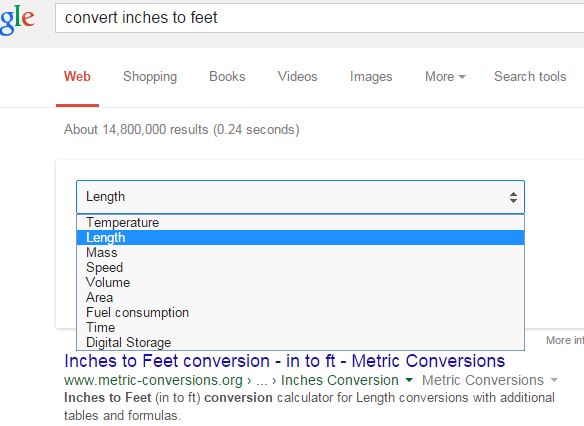
I've also been recently introduced to Google's conversion box.  By typing  something like meters to miles in the browser address bar, if Google is  your default search engine, you will get a box  something like this one.
Notice that to the right of "length" are some arrows.  By clicking on these arrow you pull down a list of options such as the following:
Allow me to mention one more Google tool--I simply typed "translate" into the Google Search box, and look what comes up.
\
Note the microphone, you can have a student speak something into the box and then translate into English, or any of dozens of other languages.  I just said goodbye and it not only translated it into Spanish (adiós) but it spoke it to me as well so that I know how to pronounce it.  

If all of what I've said today is old hat to you, I offer no apologies, because I am confident that I have shared some useful tools which will be new to many.  Now, will we remember to use them when the time comes?  


Wednesday, February 11, 2015

Ten GoogleDocs Add-Ons

I've been exploring some "add-ons" for GoogleDocs.  When editing a GoogleDoc you might have noticed the Tab which says "Add-ons."  If you click on it and from the pull down menu select "get add-ons" a window will open up listing a choice of tools developed by third parties (not by Google) which can be added on to GoogleDocs.  You can also search through these tools via the search box at the top of the window.  Here is a quick report on ten of the "add-ons" which are available there.

Recommended:

1. url shortener - builds goo.gl into  google docs - creates a short link to the doc you are working in or a highlighted link within the document. This add on is easy to use and extremely useful - I'd highly recommend it. For more on goo.gl click here.

2.  Lucidchart - good for adding thinking maps, and charts. You create an account at a Lucidchart site. At this site you produce and store diagrams. Then, when working in GoogleDocs, you click on the LucidChart add-on and a list of the charts you've created appears. From this list you can insert a chart into your document. I found the site to be fairly intuitive and easy to use. I'd recommend this add-on for about any teacher. I'm not sure to what extent mind maps are being pushed on teachers these days, but, be that as it may, they are a valuable teaching tool for anyone who needs to teach concepts.

3. Easy Accents - This is an add on which enables you to use all those foreign accents--ñ, Ϛ, Ã¼, ú, ó, etc. It is super easy to add on and use and I'd certainly recommend it for our Spanish, French and perhaps our ELL teachers. The chief limitation is that it includes only five languages.

4. GradingHelp - This would be a great add on for English teachers--however, after a trial period, it it cost $30 for six months. I'd recommend that you wait until you will be having a lot of papers to grade, and then sign up for the ten day free trial. Here is how it works. You open a student's document in Docs, then you highlight a section of the document you see a problem with and click on GradingHelp, a sidebar opens up from which you choose a category--for example, "punctuation," then a subcategory, and finally, a comment such as “hyphen needed.” GradingHelp creates a comment for you such as "Punctuation - These words work together as a compound adjective; connect them with a hyphen. (h1)" in a comment box which you have opened on the side. In other words, you can quickly add comments which would take you a long time to write out.

Not for Me:

5. MindMeister- The description states that it "lets you turn any bullet point list into a visually appealing mind map." For me, it turned a simple list into a flow chart (which was not appropriate) and left off the last point. Based on that, I wouldn't recommend MindMeister. However, if you have a real need for this sort of thing, you might find that through enough experimentation, you can master it and make it useful to you.

6. Hello Sign - The idea is to make it possible for you to add a signature to a GoogleDocs document.  The problem is that first you need to create a signature to add. I tried this with both a mouse and a touchpad and found that I did not have the patience to create a decent looking signature. Perhaps with a fine stylus it could be done, but, I don't think most people will find it worth the effort.

7. Openclipart - I installed it and tried it and my first impression of it was very favorable. However, then I tried inserting clip art without the add on. I just clicked on "insert" then "image" and found that I could do a Google search which gave me far more images to choose from. Although Openclipart seems to give you additional assurance that you won't inadvertently violate a copyright, however, if you'll go back and read this blog post, I don't think you'll find that a concern anyway (as long as your use is for an educational purpose.)

8. ProWritingAid - "improve your writing. Check your writing for consistency, plagiarism, acronyms, cliches, redundancies, grammar mistakes and more." I conceived of this as useful to an English teacher who wanted to check his student's documents for plagiarism. I was disappointed to find that it is not as free as it first appears, it was unable to detect that I had plagiarized from Wikipedia. Furthermore, in a sentence about the state legislature, it suggested I might want to use the term "tell us" rather than "state." This is not an add on that I'd recommend.


9. Gliffy (diagrams made easy) - This should be very similar to Lucidchart. However, it took me to a site that had it's content missing. I just couldn't get it to work. Perhaps you'll have better luck, if you want to give it a try, here is their website.


10. Thesaurus - With this add-on I've had it work as expected, not work at all, and work but produce no results.  Useful if it works, but, from my experience, I can't recommend it.
.


Thursday, January 15, 2015

Collaboration With Google Drive: Part Three

This is the third and final installment in a series of postings drawn from a conference session entitled Collaboration with Google Drive,  by Andrea Jones of Franklin Middle School in Fairfax County. In this post we will move on to the use of templates and contact lists in conjunction with Google Drive

Templates
At some ACPS schools, there is a lesson plan template created in Google Docs.  The lesson plan template serves to illustrate how a teacher might create a “handout” assignment in Google Docs and share it with the class, granting students only the right to “view” the documents.  Students could then “make a copy” which they can edit (fill in the answers) and place that copy in their folder which is shared with the teacher. Again, this process should sound very familiar to those teachers who are filling in Google Docs lesson plan templates. If you are not doing your lesson plans in this manner, it might sound very confusing, but, it isn't really--just try it step by step and see how it works. If you run into difficulties, don't hesitate to contact your friendly, local ITRT or to ask one of the teachers I suggested in last week's post.

Contact Lists


In order to facilitate the sharing of documents, it is handy to have student groups within your contact lists. That is, you can create a group with all your students from a particular class. Then, rather than having to share a file with each individual student's Email address, you can just type something like "second block" and share it with all  twenty-some odd students in second block. (I've had classes where quite a number of the students were odd).
Andrea suggested that the first time you have your class use Google Drive you may want them to fill out a form in which they enter their account address--which would enter them in a column on a spreadsheet. This, in turn, would allow you quickly and easily create a group of contacts by copying and paste-ing the column of addresses as you create a contact group.  There are other ways as well, of creating groups of contacts and it sure makes things a lot easier to share a document with a class full of students. If you’d like help with creating groups in your contacts, let your ITRT know.

illustrations of how to switch to contacts, where to find forms, the spreadsheet--might be included. 


Assorted Notes

Andrea pointed out the different types of files that can be created and shared--documents, spreadsheets, forms (quizzes, surveys), presentations, and drawings.  She mentioned that some tools are only visible when an item on the page is selected--so students shouldn't panic if it at first appears that they can’t do something.  She suggested that “Chrome” is the best browser to use in conjunction with Google Drive.

Next week we'll move on to another topic, see you then.

Tuesday, December 16, 2014

Collaboration With Google Drive; Part One


The final session I have to report on from the 2014 GAFE summit will be on a session entitled Collaboration with Google Drive,  by Andrea Jones of Franklin Middle School in Fairfax County. This report may take me several postings.

As the title suggests,  this session dealt with practical tips and understandings helpful in using the sharing capacities of Google Drive.  After reviewing my session notes, I am left wishing I had done so before we set up the lesson plan folders.  I’ll try to use what Andrea said, as well as what I learned from my own mistakes efforts, to come up some suggestions which may be helpful to you.  Some of this information was also covered in Melissa’s entry “The Ultimate Workflow.

The first thing I learned from this session, was rather tangential to the session itself, but, very useful nevertheless. It was in regard to the website Goo.gl  This site is the “Google URL Shortener”.  Have you ever had one of those long web addresses that would just be too complicated to try and give to all your students?  One solution (there are others) is to go to goo.gl and enter the long address, then click on “shorten” and Google will give you a shorter (though case sensitive) address that will be much easier to have your students type in to their browsers.  In addition, if you have a Google account, or establish one with goo.gl, you can have goo.gl do analytic analysis of the page for which you pasted in the address.  That is, it will keep track of how many clicks that page gets, what countries, browsers, and operating systems they came from, as well as what search engines may have referred the user to the site. Similarly, TinyURL.com allows you to shorten a URL giving it a custom name such as TinyURL.com/historyworksheet.

We haven't yet started in on the main subject of this review, however I think I'll quit here and plan to get to it in part two--after Christmas break. Speaking of which, have a very Merry Christmas and a relaxing winter break.

Tuesday, December 9, 2014

Gearing Up With Google Sites


This session was presented by Matt Faquay an ITRT from Chesterfield County Public Schools.  
Matt’s workshop was aimed at teachers who have Google accounts and might be considering using Google Sites as a vehicle to create webpages for their classes.  Here is the site he used for the presentation.  Perhaps after reading this post, you, like Amanda Mitchell, the librarian at NHS, will consider creating web pages using Google Sites.


Ponder, if you will, the four basic templates Google Sites provides:

  • Start Page - intended to be the home page
  • File Cabinet - can be used as an index to downloadable documents, presentations and other files you may want your students to access
  • Announcements - could be used as a place to post homework assignments
  • Lists - useful for group assignments. By default this template has columns for tasks to be done, open issues, and current status - but these can be added to or modified.
When editing a Google Site teachers can take documents, presentations, etc., created in Google Drive and embed or insert them right into a the web page. Images are easy to add by uploading a picture, or by linking to an image on another page.  Additionally, Google offers plenty of "gadgets" (widgets) which can be added - weather, calendars, clocks, news, games and more.  With a little customization a Google presentation can become an rolling slide show on your webpage.  


Here is a suggestion to consider; a start page can be set up that only the teacher can edit.  There can be a navigation bar on the start page from which viewers can go to individual pages edited by students.  As with shared documents in Google Drive, pages can be set up with different levels of access.  Deleting a page, for example,  would be something only the page owner could do, a collaborator could change it, and a viewer can only look at it.  Pages do not necessarily need to be viewable by the general public..  


Templates and Themes are available to help in making the pages look professional.  A couple of interesting scripts were mentioned in the workshop.  One, PageMeister, creates pages for every student in your room  A second, Google Analytics, keeps track of everyone who visits your site, where they visited from, how long they spent on your page, and your bounce rate (did they leave your site or click around within it).
Here is a site, at Google Sites, on how to use Google Sites.  From one of the subpages on the link I just gave you, here are examples of how others have used Google Sites:


Teacher examples:


Student examples:


School examples:


Design examples:


Capture.JPG
After a bit of digging, I just discovered how to add the icon for “Sites” to my icon drop down list.  This is the first time I remember knowing that you could customize this window.  You can just drag around the icons that are there and put them where you want them--or you can add other icons from the “even more” section, if you wish.

Wednesday, May 28, 2014

Inbox Zero


This is a review of “Find Extra Hours in Your Week: Calendar and Gmail Tricks to Save You Time” by Jennie Magiera.  


Due to the nature of the conference, Jennie’s information was all directed at users of Google Calendars and Gmail.  My remarks today will be confined to her suggestions related to Gmail.  Next year, as you know, ACPS teachers will be migrating to Gmail.  

Jennie urged us to keep the number of emails in our inboxes to zero.  All of the tips below are not only suggested as a way of saving time, but as a way of keeping a tidy inbox.


For example, Jennie suggested the use of keyboard shortcuts.  I did not know, for example, that by entering the letter “c” the box pops up where you can compose a new Email. Although I did go to “settings” and turn them on, I have not started using any of these shortcuts yet, I was just reminded of them when I begin reviewing the material for this post. There are around seventy of these shortcuts, so I’m sure I’ll never learn them all. I've just installed a chrome app known as KeyRocket which is designed to teach keyboard shortcuts. When you do a particular action, a small box pops up and tells you what shortcut you might have used. Having done that, perhaps I’ll start learning some of these shortcuts. I don’t believe I’ll ever achieve the 200-300 finger actions per minute required to become an expert gamer, however, over time, keyboard shortcuts may indeed save me some time.


Here are some other Gmail tips Jennie offered:
  • Have mail from all of your email addresses forwarded to your personal Gmail account (you can still send outgoing emails using the return address and signature line from your other accounts)
  • Use filters to search through your emails--even archived mail
  • Use “labels” (tags) for sorting purposes--you can give an email multiple labels and get it out of your inbox at the same time
  • Use filters to send automatic, canned responses to selected emails
  • Use templates to speed in responding to emails
  • Color code emails
  • “Unsend” an email (if you act quickly enough)
  • Use the Boomerang App to have unopened emails sent back to you
  • Use Boomerang to have selected emails returned to you after a set time period
  • Schedule the sending of outgoing mail
  • Use a “vacation responder” to send canned responses while you are getting away from it all
  • Transfer emails to a “todo” list which integrates with Google Calendars


I don’t know about you, but I appreciate all of these time-saving tips as well as the encouragement to keep the size of my inbox down--things which don’t come naturally to me.  I hope I have wetted your appetite for one of the first changes you will notice next year--Gmail

Tuesday, March 25, 2014

Re-Charging Classroom Instruction with YouTube Edu and Google Apps


This session was presented by Kim Randall who makes her living doing these types of workshops around the world.  However, while sitting through the session, I thought she was a classroom teacher, because all that she suggested seemed very practical, do-able, and valuable.  Here I'll recap of some of the strategies she suggested and I'll provide you the list of resource links she accompanied them with.  Although you won't be able to use these strategies quite the way she anticipates (because our students won't have Google accounts until next year) with some modifications they could be used this year.

Strategy One- Vocabulary Development - this strategy could be used when teaching or introducing a wide variety of material.  Kim turned the session into a classroom and the session participants into engaged learners.  She first showed us a video on the City of London, a city of 11,000 people which is surrounded by London, a city of 7,000,000 people.  She paused the four minute video repeatedly to allow us to write down seven to ten key words or phrases.  Then she had us put ourselves into groups in which we agreed on a group list of 7-10 key words or phrases, which a group recorder typed these into a Google form.  From the form the terms went into a Google drive spread sheet from which she copied and pasted into Wordle to create a word cloud.

Strategies Two and Three - Using Google Draw Graphic Organizers - If you have a Google account, perhaps you are familiar with Google Drive.  For those of you who aren't familiar with Google Drive, let me give you a brief introduction, as NEXT YEAR you will have an ACPS Google account.  Google Drive is similar to DropBox in that it provides cloud (online) storage.  Additionally, there is an online word processor, presentation creator, spreadsheet, etc.  Each of these applications can be used collaboratively--two or more people can edit the document simultaneously.

Among these applications is "Google Draw"--which I had previously disregarded as not all that relevant to the high school classroom.  Well, I was wrong.  Kim Randall had us take what we had learned and collaboratively enter it into a couple of different graphic organizers.  I believe she made these herself, but there are a number of templates available for Venn diagrams and that sort of thing.
.
Strategie Four - Three Facts and a Fib. Another activity session participants engaged in was to read through four statements and try to identify the fib.  These predictions were entered into a Google form so that the "class" could immediately see how many class members chose each of the four statements.  We then watched a YouTube EDU video on sea turtles to find out if we were correct.  This seems to be a very useful way of getting students to pay close attention to educational videos.  Of course there are many variations of this activity--for example having students watch a video and then create their own list of three facts and a fib.

Strategy Five - Half  the Story.  With this one, the teacher takes an image and simply crops out half of it. The students then speculate on what the missing part of the image shows.

Strategy Six - Caption It - Show the students an image and have them create a caption for it, thus encouraging them to study and analyze the image.  As a former social studies teacher I can see a lot of applications for this,.

Here is the list of resources Ms. Randall provided for use with these strategies--or some strategy of your own.